
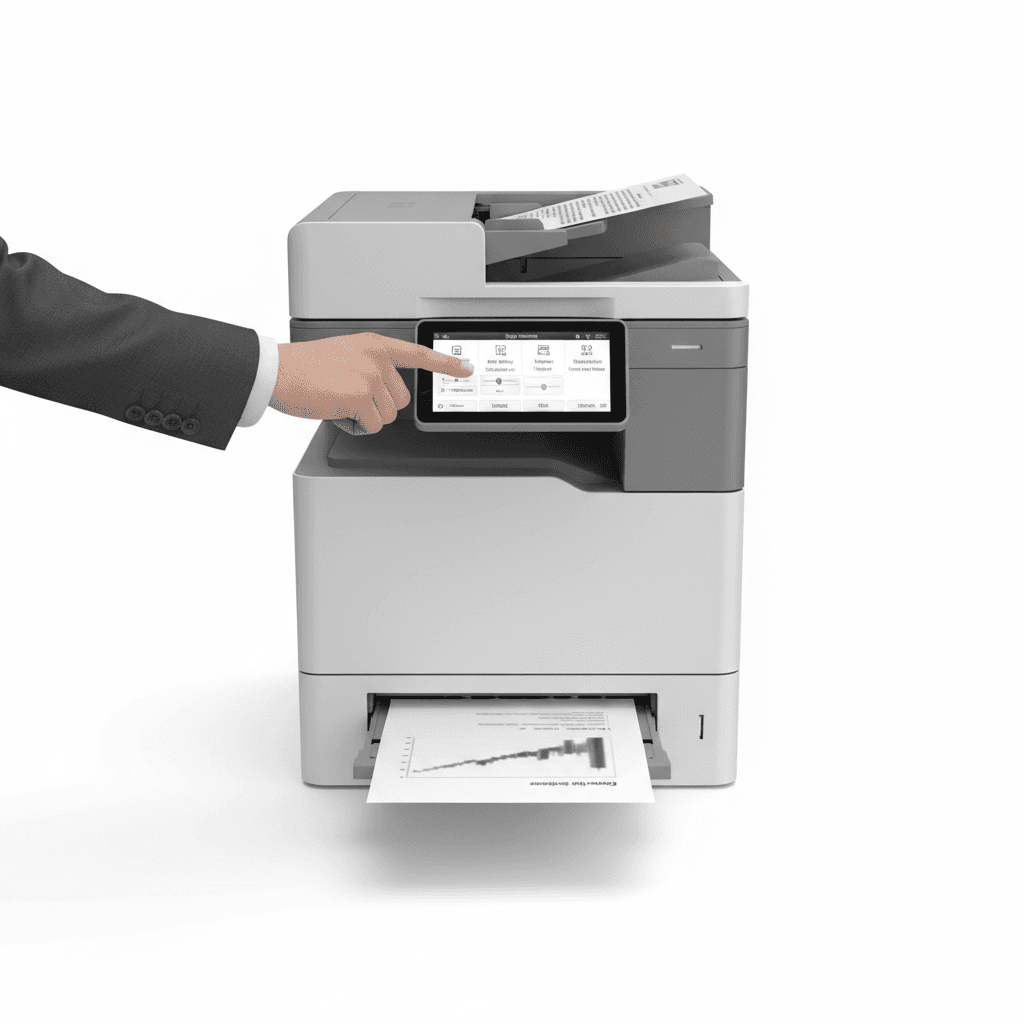
How to Fix Faded Copies: Photocopier Troubleshooting Guide 2026
Introduction
Faded or light copies can be a frustrating issue, impacting document quality and office productivity. This common problem often signals an underlying issue with your photocopier or printer. Understanding the root causes and implementing the right solutions can save you time, money, and ensure your documents consistently look professional. This guide will walk you through the most common culprits and their fixes.
Main Discussion
1. Low Toner or Ink Levels
The most frequent cause of faded copies is simply low toner (for laser printers/copiers) or ink (for inkjet printers). When the cartridge is running low, the machine struggles to deposit enough pigment onto the page, resulting in light or streaky prints.
- Solution: Check your photocopier's display panel or software for toner/ink levels. If low, replace the cartridge with a genuine, high-quality replacement. For optimal results in Pakistan, consider reputable brands and suppliers known for their quality.
2. Worn-Out Drum Unit
The drum unit (or imaging unit) is crucial for transferring the toner to the paper. Over time, the drum's coating can wear out, leading to uneven or faded prints. This is particularly common in laser photocopiers.
- Solution: Consult your photocopier's manual for the expected lifespan of the drum unit. If it's nearing or past its limit, it needs replacement. This is often a separate component from the toner cartridge.
3. Dirty Scanner Glass or Optics
If your original documents are placed on the scanner glass, dirt, smudges, or dust on the glass can interfere with the scanning process, causing the resulting copy to appear faded or have light streaks.
- Solution: Power off the photocopier. Gently clean the scanner glass and the underside of the lid with a lint-free cloth and a mild glass cleaner (non-abrasive). Ensure no residue is left behind before closing the lid and powering on.
4. Incorrect Density Settings
Many photocopiers allow users to adjust copy density or lightness/darkness settings. If these settings are inadvertently set too low, your copies will naturally appear faded.
- Solution: Access your photocopier's control panel and navigate to the copy settings. Look for "Density," "Lightness," "Darkness," or "Contrast" options. Increase the density setting to a higher level and test with a few copies.
5. Fuser Assembly Issues
The fuser assembly is responsible for melting the toner onto the paper, making the print permanent. If the fuser isn't reaching the correct temperature or is faulty, the toner might not adhere properly, leading to faded or easily smudged copies.
- Solution: Fuser assembly issues often require professional intervention. If you suspect a fuser problem, especially after checking other common causes, it's best to contact a qualified technician. Attempting to fix it yourself can cause further damage or void warranties.
Why It Matters
For businesses and offices across Pakistan, clear and legible documents are paramount. Faded copies not only reflect poorly on your professionalism but can also lead to misinterpretations, wasted paper, and increased operational costs due to reprinting. Ensuring your photocopier produces crisp prints maintains efficiency, upholds your company's image, and contributes to a smoother workflow. Regular maintenance and prompt troubleshooting can significantly extend the life of your equipment and prevent costly downtime, directly impacting your bottom line in the competitive Pakistani market.
Contact
Contact us: +92 332 2805280
Follow Us on TikTok
Check out our latest videos, product demos, and behind-the-scenes content
Follow Us on Facebook
Stay updated with our latest news and community updates