
How to Fix Printer Connectivity Issues: A Comprehensive Guide
Introduction
Connectivity issues can halt productivity in any fast-paced office environment. Whether it is a wireless network failure or a hardware communication error, understanding the root cause is essential for maintaining a seamless workflow. This guide explores practical solutions to keep your printing infrastructure online and efficient.
Main Discussion
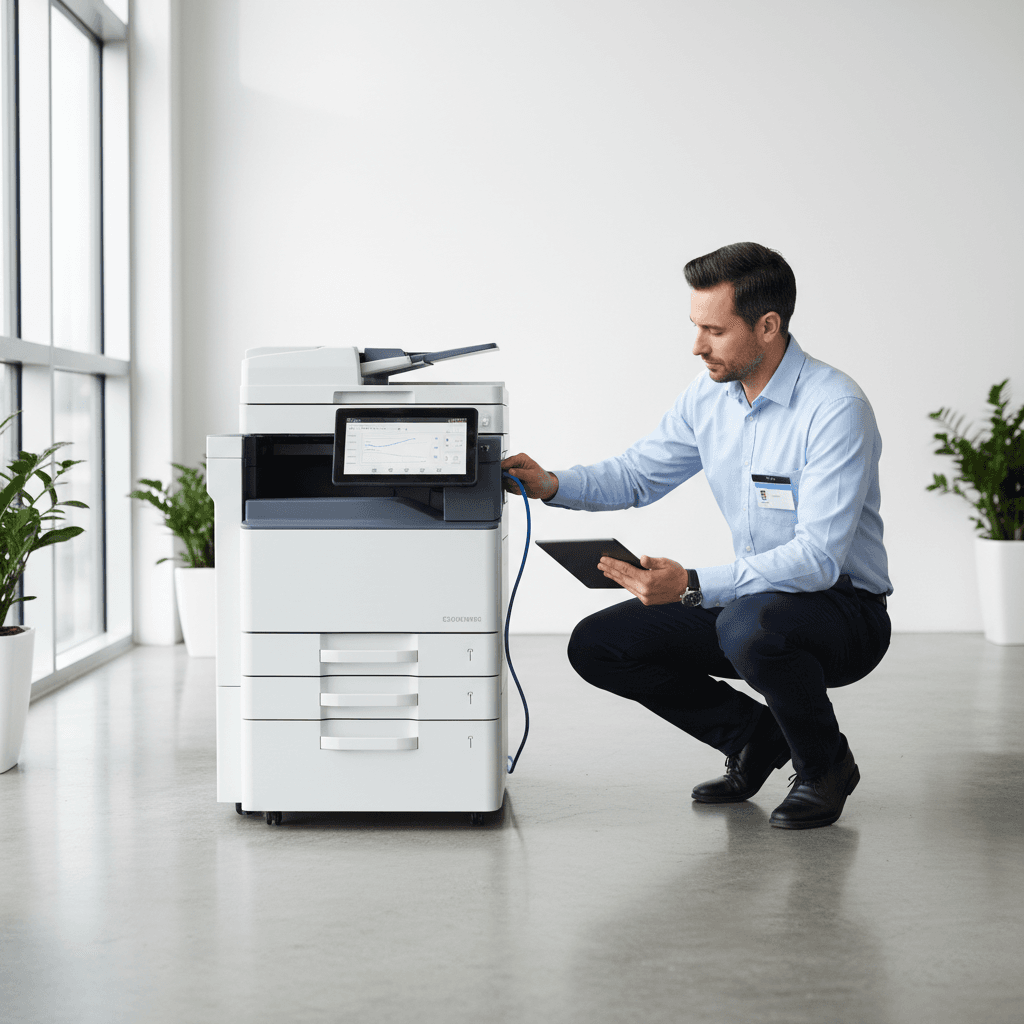
- Verify Network Stability: Ensure the printer and the computer are connected to the same Wi-Fi network. For high-volume photocopiers in busy offices, a wired Ethernet connection is often more stable and reliable than wireless alternatives.
- Update Printer Drivers: Outdated or corrupt drivers are a primary cause of the "Printer Offline" status. Regularly check the manufacturer's website for the latest software updates compatible with your specific operating system to ensure hardware compatibility.
- Clear the Print Queue: A single stuck document can block all subsequent tasks in the spooler. Clearing the print queue and restarting the print service in your computer's settings often resolves communication lags between the device and the PC.
- Address IP Conflicts: Static IP addresses are recommended for office printers. If a router assigns a new IP via DHCP, the computer may lose its pathing to the device. Assigning a permanent IP ensures the connection remains consistent across the local area network.
Why It Matters
In Pakistan's competitive business landscape, downtime translates directly to lost revenue and delayed operations. Reliable printing is crucial for legal documentation, invoicing, and logistics. Ensuring your photocopiers are properly networked minimizes technical delays, reduces the need for frequent IT intervention, and enhances overall office efficiency.
Contact
Contact us: +92 332 2805280
Follow Us on TikTok
Check out our latest videos, product demos, and behind-the-scenes content
Follow Us on Facebook
Stay updated with our latest news and community updates