
How to Set Secure PIN Printing: A Guide for Offices in Pakistan
Introduction
Secure PIN printing is an essential security feature for modern offices that handle sensitive information. This function ensures that a document is only printed when the user is physically present at the device to enter a unique code. By implementing this protocol, businesses can significantly reduce the risk of data breaches and unclaimed print jobs.
Main Discussion
- Accessing Printer Preferences: On your computer, navigate to the 'Devices and Printers' section within the Control Panel. Right-click on your specific photocopier model and select 'Printing Preferences' to access the driver settings.
- Selecting the Output Method: Look for a tab labeled 'Job Storage', 'Output Method', or 'Security'. Change the default setting from 'Normal Print' to 'Secure Print' or 'Locked Print' depending on your manufacturer's terminology.
- Configuring the User ID and PIN: Once the secure option is selected, a pop-up window will typically appear. Enter a recognizable User ID and a 4-to-8 digit numeric PIN. This PIN will be required at the physical machine to release the document.
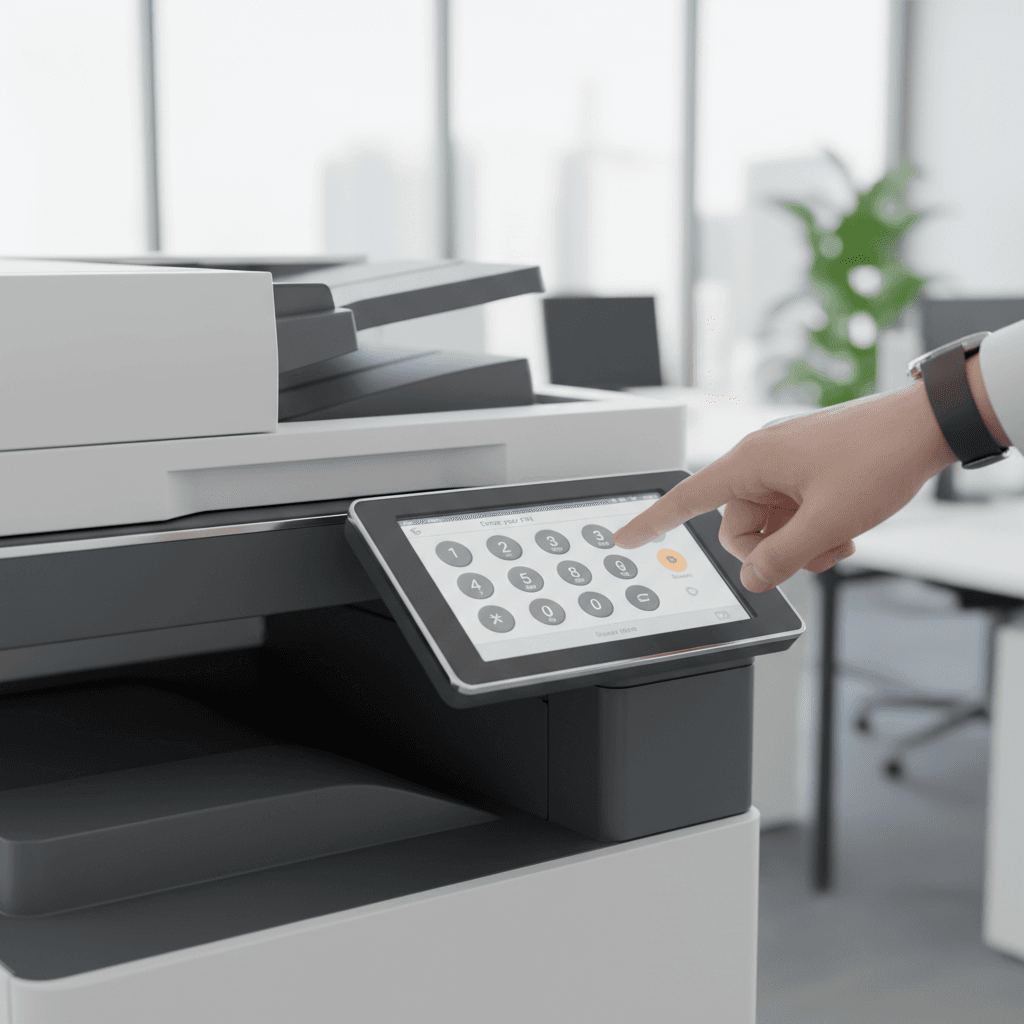
- Releasing the Job at the Device: After sending the print command from your PC, walk to the photocopier. Select the 'Secure Print' icon on the touchscreen, find your User ID, and enter the corresponding PIN to begin the printing process.
Why It Matters
In Pakistan, many corporate environments and government offices operate with shared printing resources. Without secure printing, confidential documents such as financial audits, legal contracts, or HR records can sit exposed on the exit tray. Implementing PIN-based release protocols enhances document confidentiality, ensures compliance with data protection standards, and reduces overhead costs by preventing accidental or duplicate printing.
Contact
Contact us: +92 332 2805280
Follow Us on TikTok
Check out our latest videos, product demos, and behind-the-scenes content
Follow Us on Facebook
Stay updated with our latest news and community updates