
How to Set Secure PIN Printing: A Step-by-Step Guide for Offices
Introduction
Secure PIN printing is a critical feature for modern offices that handle sensitive data. By requiring a unique code at the device, businesses can ensure that confidential documents are only printed when the authorized user is physically present at the machine. This simple configuration adds a vital layer of security to your document workflow.
Main Discussion
- Access Printer Properties: Navigate to the 'Devices and Printers' section on your computer's control panel. Right-click your specific photocopier model and select 'Printing Preferences' to access the driver settings.
- Enable Job Storage: Look for a tab labeled 'Job Storage', 'Output Method', or 'Secure Print'. Depending on the manufacturer (such as Ricoh, Canon, or HP), the terminology may vary, but the function remains the same: holding the job in the printer's memory.
- Set a Unique PIN: Select the 'Locked Print' or 'Secure Print' option and enter a 4-to-8 digit numeric code. This code is private to the user and will be required at the machine's physical control panel to release the document.
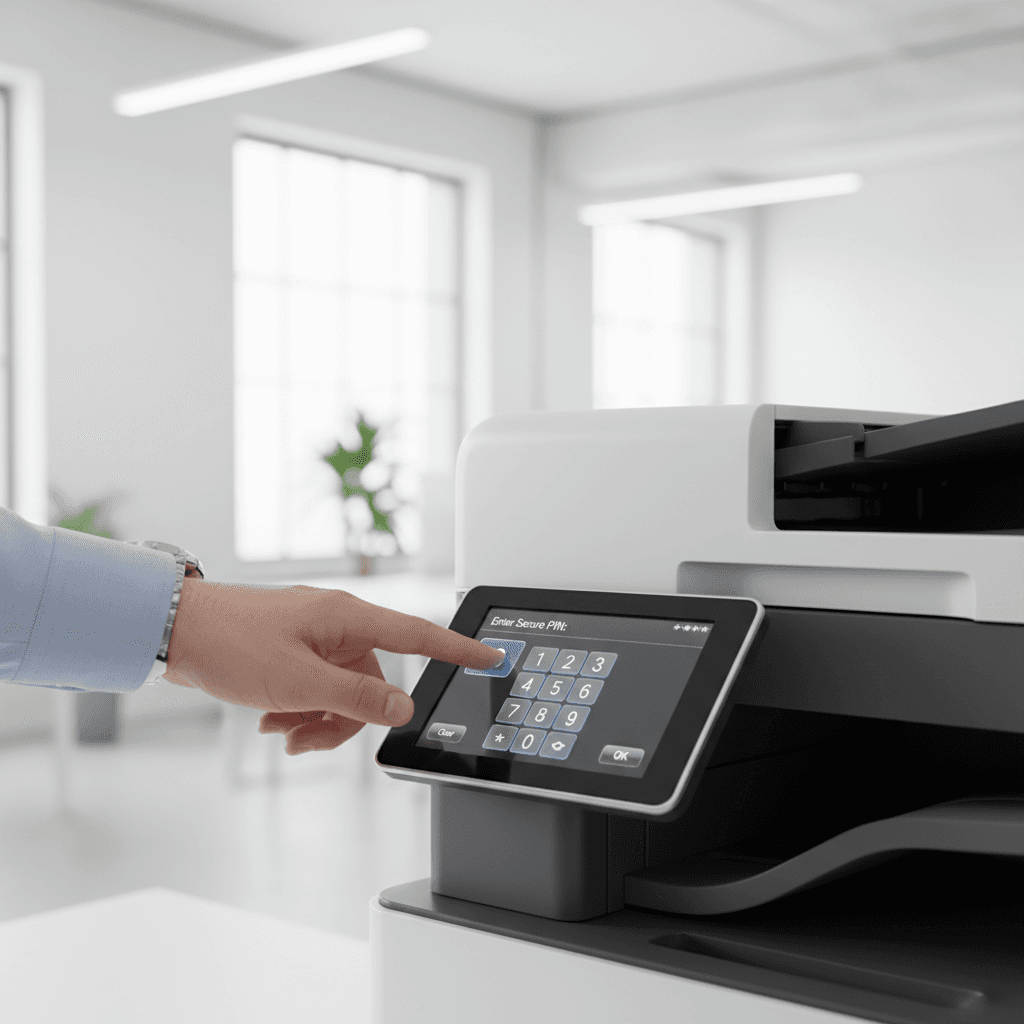
- Release at the Device: Once the job is sent, walk to the photocopier and select the 'Print' or 'Job Status' icon on the touchscreen. Locate your username, select the document, and enter your PIN to initiate the printing process.
Why It Matters
In Pakistan, where data privacy is increasingly prioritized in sectors like banking, law, and healthcare, implementing PIN printing helps prevent information leaks. It ensures that sensitive records are not left unattended in the output tray. Furthermore, it significantly reduces operational costs by eliminating 'forgotten' print jobs that contribute to unnecessary toner and paper waste.
Contact
Contact us: +92 332 2805280
Follow Us on TikTok
Check out our latest videos, product demos, and behind-the-scenes content
Follow Us on Facebook
Stay updated with our latest news and community updates