
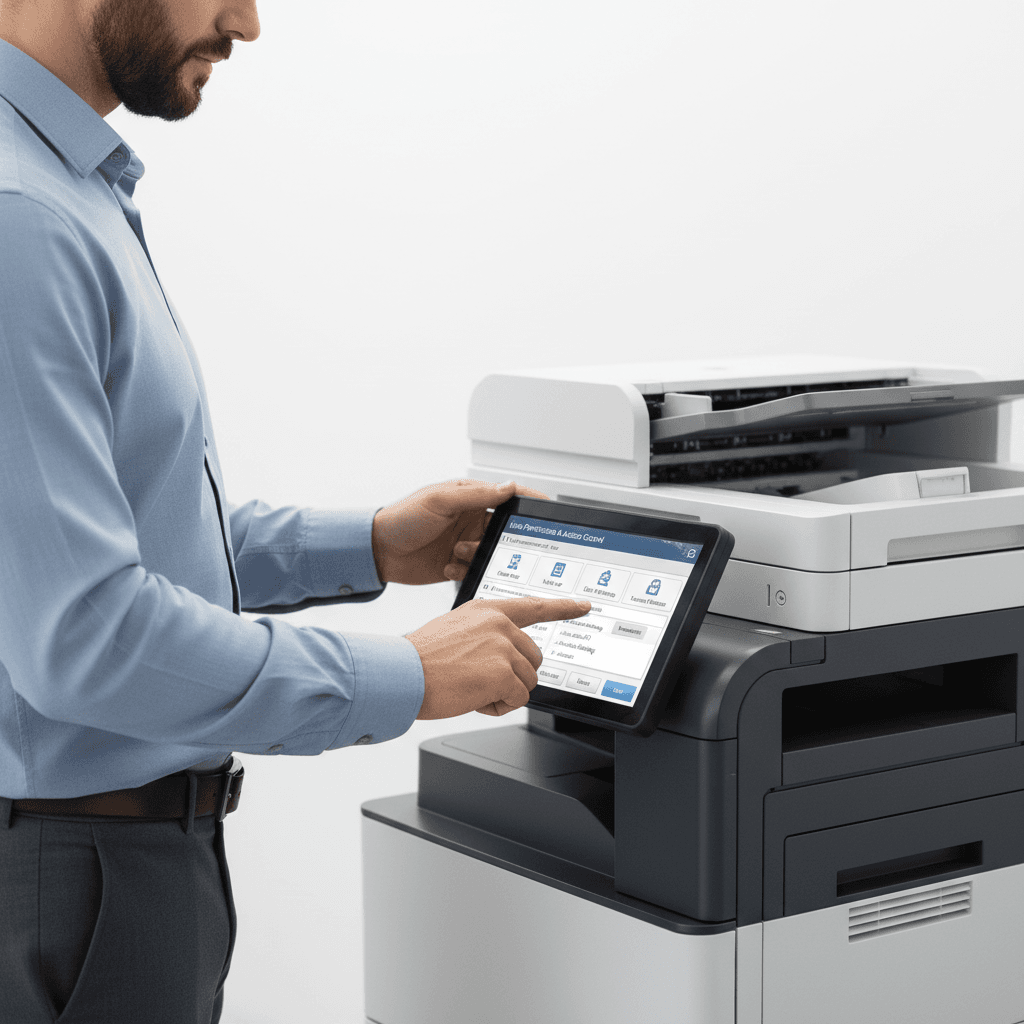
Secure Your Office: Setting User Permissions on Network Photocopiers
Introduction
In today's fast-paced business environment, network photocopiers and multifunction printers (MFPs) are indispensable tools for offices across Pakistan. While offering immense convenience, managing who can access specific features and functions is crucial for security, cost control, and operational efficiency. This guide will walk you through the essential steps to set user permissions on your network photocopiers, ensuring your office resources are utilized effectively and securely.
Main Discussion
- Accessing the Administrator Panel: The first step involves logging into your photocopier's web-based administrator interface. This is typically done by entering the device's IP address into a web browser on a networked computer. You'll need the administrator username and password, which are usually set during initial installation or can be found in the device's manual. Brands like Konica Minolta, Ricoh, Canon, and HP all provide intuitive web interfaces for management.
- Creating User Accounts and Groups: Once logged in, navigate to the 'User Management' or 'Authentication' section. Here, you can create individual user accounts, each with a unique username and password. For larger offices or departments, it's often more efficient to create user groups (e.g., 'Sales Department', 'Accounts Team') and assign users to these groups. This simplifies permission management for multiple individuals.
- Assigning Permissions and Restrictions: This is where you define what each user or group can do. Common permissions include:
- Print Quotas: Set limits on the number of pages (especially color prints) a user can print per day, week, or month.
- Feature Access: Restrict access to specific functions like color printing, scanning to email, faxing, or advanced finishing options.
- Authentication Requirements: Configure the machine to require a user ID and password before any operation (copy, print, scan) can be performed.
- Scan Destinations: Limit where users can scan documents (e.g., only to their own email address or a specific network folder).
- Integrating with Directory Services: For businesses with existing IT infrastructure, many modern photocopiers support integration with directory services like LDAP or Microsoft Active Directory. This allows you to leverage your existing user database, simplifying user management and ensuring consistent authentication policies across all network devices.
- Monitoring and Reporting: After setting permissions, regularly monitor usage logs and generate reports. Most network photocopiers provide detailed logs of who used the machine, when, and for what purpose. Analyzing these reports helps ensure compliance, identify potential misuse, and fine-tune your permission settings for optimal performance and cost-efficiency.
Why It Matters
For businesses and offices across Pakistan, from Karachi to Lahore and Islamabad, implementing user permissions on network photocopiers offers significant advantages. It's not just about security; it's a strategic move for operational excellence. By controlling access, you can drastically reduce unauthorized color printing, which is a major cost driver. Data security is enhanced by ensuring only authorized personnel can access sensitive documents or scan them to approved destinations. Furthermore, it promotes accountability, streamlines workflows, and helps meet compliance standards for data handling, all of which contribute to a more efficient, secure, and cost-effective business environment in Pakistan.
Contact
Contact us: +92 332 2805280
Follow Us on TikTok
Check out our latest videos, product demos, and behind-the-scenes content
Follow Us on Facebook
Stay updated with our latest news and community updates